
Supreme NiuNiu Registration Guide: Invitation Code and Telegram Registration Steps
Supreme NiuNiu registration requires entering the Supreme NiuNiu Supreme NiuNiu Telegram mini program from the current official website's registration entry, and completing inviter binding, device binding, and system language selection according to the page prompts. This guide organizes the complete steps based on the actual registration interface and explains the invitation code, QR code, and matters to note during the registration process, making it easy for new users to complete the operations in order.
Supreme NiuNiu Registration Steps
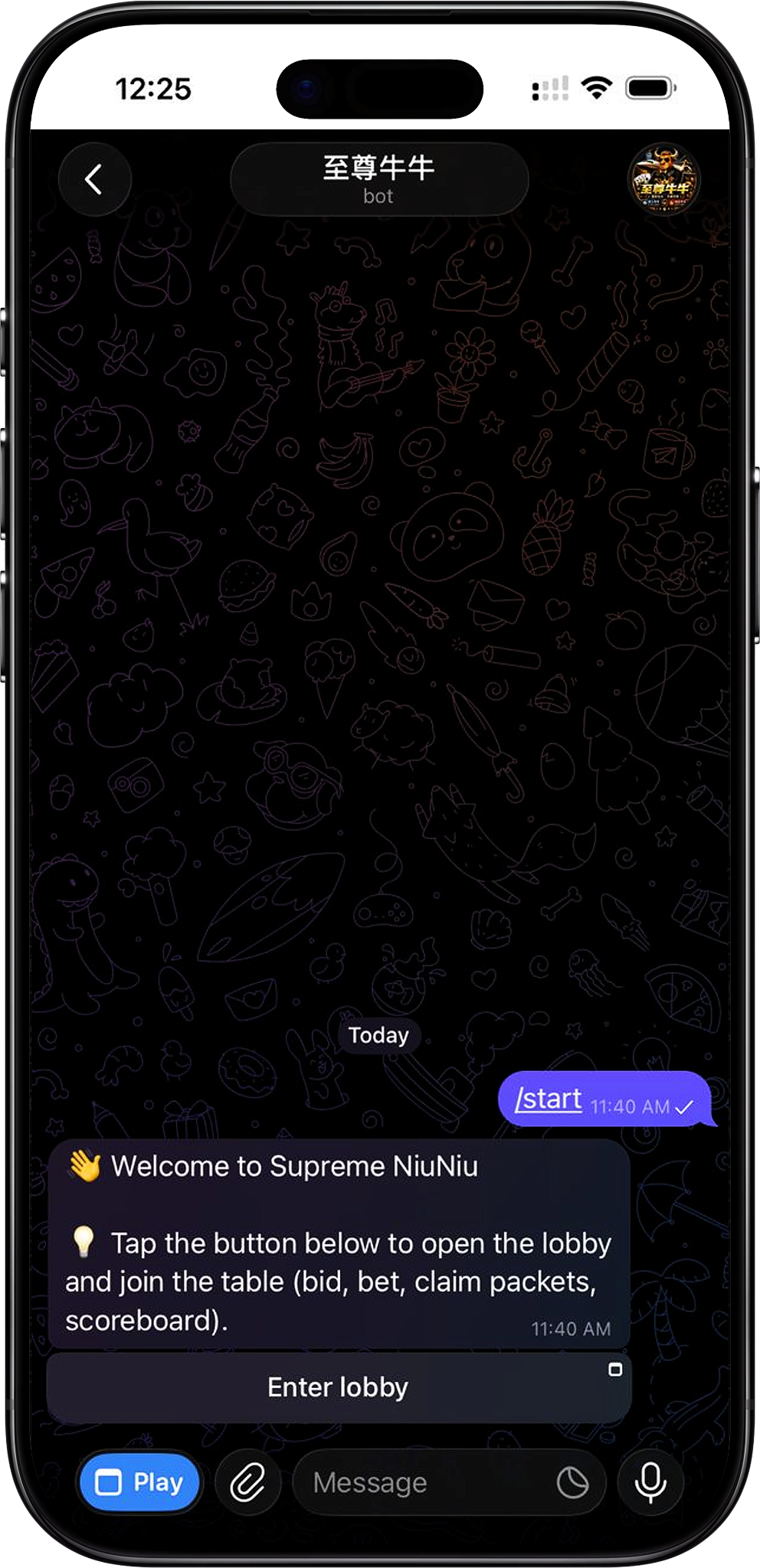
The Supreme NiuNiu registration process starts from the official website's registration entry and then redirects to the Supreme NiuNiu official mini program within Telegram. During registration, operations should be completed in the order shown on the page, and the inviter and device binding pages should not be skipped.
Step 1: Enter the registration entry from the official website
On the current Supreme NiuNiu official website page, click the "Register"-related button, and the page will redirect to the Supreme NiuNiu Supreme NiuNiu Telegram registration entry. Before entering, confirm that you are using the correct official website page and the corresponding Telegram mini program entry.
Step 2: Click OPEN APP on the Telegram page
After entering the Telegram page, you can see the page information for "Supreme NiuNiu" and the "Supreme NiuNiu Official Mini Program." Click "OPEN APP" to open Telegram and continue into the Supreme NiuNiu registration process.
Step 3: Bind the inviter
Step 1 of registration is "Bind Inviter." The page supports entering the inviter's UID or completing the association through "Scan Invitation QR Code." After confirming that the inviter information displayed on the page is correct, click "Confirm Binding." The page also warns that it cannot be changed after binding, so it should be carefully verified before submission.
Step 4: Bind the current device
After completing inviter binding, the system will require new device binding. The page explains that each account implements a single-device binding mechanism. After confirming that the current device has Touch 'n Go installed and logged in, you can click "Bind This Device" to continue.
Step 5: Select the system language
Step 2 of registration is selecting the system language. The current interface provides Chinese, English, Bahasa Melayu, ไทย, and Tiếng Việt. After selecting the language you need to use, click "Next." The interface and notifications will be displayed in the selected language, and it can also be changed later in settings.
Step 6: Enter the Supreme NiuNiu platform
After completing the above registration settings, you can enter the Supreme NiuNiu platform interface. On the homepage, you can see entries such as top-up, withdrawal, invitation rebates, and daily rewards; the actual available features and status shall be subject to what the platform displays at that time after registration is completed.
Supreme NiuNiu Invitation Code and QR Code Explanation
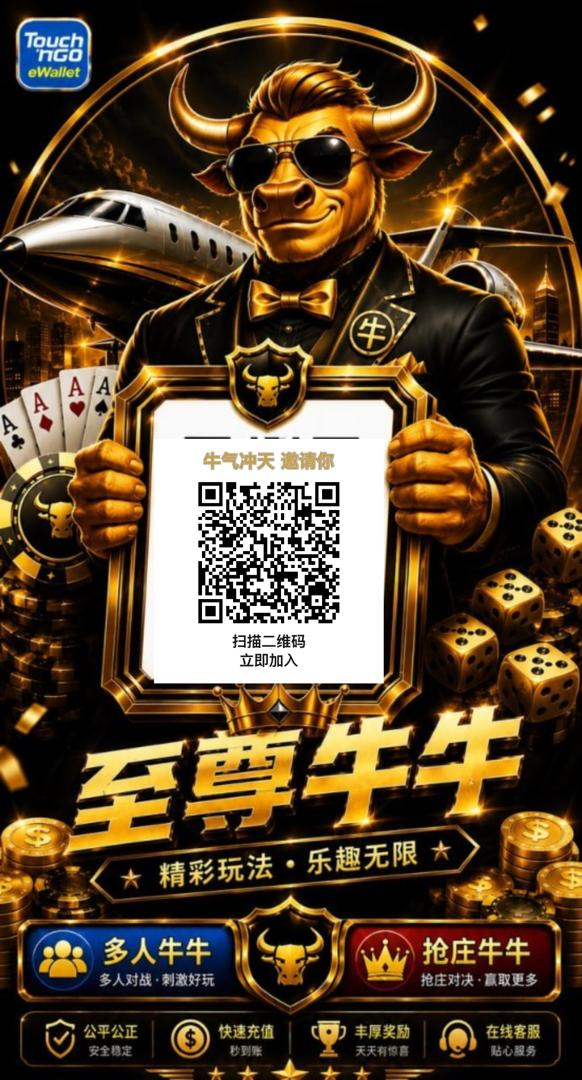
Invitation code-related operations are an important part of the Supreme NiuNiu registration process. The "Bind Inviter" page in the registration interface supports both the inviter UID and the invitation QR code. Users should choose the corresponding method based on the invitation information they have obtained and check the inviter information before confirming the binding.
Using the inviter UID
If you have already obtained the inviter's UID, you can enter the corresponding information in the "Inviter UID" field. After the system recognizes it, the inviter information will be displayed. Confirm it is correct before proceeding with the binding.
Scanning the invitation QR code
If what you have obtained is a Supreme NiuNiu invitation QR code, you can choose "Scan Invitation QR Code" for recognition. The purpose of the QR code is to help complete the invitation relationship binding. After scanning, you should still verify the inviter information displayed on the page and should not judge the source solely by the appearance of the QR code.
Confirm the inviter information before binding
The registration page clearly warns that the inviter cannot be changed after binding. Therefore, whether using a UID or a QR code, you should first check the inviter information recognized by the page, and then click "Confirm Binding" to avoid binding to another inviter due to an input or scanning error.
Binding the Current Device During Registration
The Supreme NiuNiu registration process includes a new device binding step. According to the registration page prompts, the platform implements a single-device binding mechanism for each account, so registering users need to confirm the device they are currently using before completing the binding.
Why device binding is required during registration
The page explains that device binding is used to protect account asset security and adopts a "one account, one device" mechanism. When changing devices, you can use the payment password on the login page to self-service rebind; if rebinding cannot be done, you need to contact platform customer service for handling.
Check Touch 'n Go before binding
The new device login page prompts that before binding a device, you should confirm that the current device has already installed and logged in to Touch 'n Go; otherwise, it may affect the normal use of top-up, withdrawal, and game features. After confirming that the device meets the page requirements, click "Bind This Device."
Selecting the System Language After Registration
The Supreme NiuNiu registration process provides multilingual selection, allowing users to set their commonly used interface language before entering the platform. The current registration page displays five language options: Chinese, English, Bahasa Melayu, ไทย, and Tiếng Việt.
Select your commonly used language
On the "Select System Language" page, tap the language you need to use, and then click "Next." The page explains that the interface and notifications will immediately switch to the selected language, so you can choose according to your own reading habits.
The language can be changed later
The system language selected during initial registration is not permanently fixed. According to the page prompts, it can still be changed later in settings, so users can first choose the language that is currently most convenient to use to complete registration.
Supreme NiuNiu Registration FAQ
Where do I register for Supreme NiuNiu?
Users can start from the registration page on the Supreme NiuNiu official website, click the registration-related button to enter the Supreme NiuNiu Supreme NiuNiu Telegram page, and then open the Telegram mini program through "OPEN APP" to continue registration.
Does Supreme NiuNiu registration necessarily require Telegram?
According to the currently provided registration process, the official website registration entry redirects to the Supreme NiuNiu official Telegram mini program, and registration settings such as inviter, device, and language are completed through that entry.
Can I fill in any UID if I do not have an invitation code?
It is not recommended to fill in an unconfirmed UID. The registration page warns that the inviter cannot be changed after binding, so you should use an inviter UID or invitation QR code that you have actually obtained and confirmed to be correct.
What is the difference between an invitation QR code and an inviter UID?
Both are inviter association methods provided on the current registration page. When you have a UID, you can enter it directly; when you have a QR code, you can choose to scan it. Whichever method is used, you should confirm the inviter information displayed on the page before final binding.
Can I change phones after binding a device?
According to the new device login page explanation, when you later need to change devices, you can use the payment password on the login page for self-service rebinding; if rebinding cannot be completed, you need to contact platform customer service.
What languages can be selected during registration?
The current registration page provides Chinese, English, Bahasa Melayu, ไทย, and Tiếng Việt, and notes that the system language can be changed later in settings.
Start Your Supreme NiuNiu Registration
Enter the Telegram official mini program from the Supreme NiuNiu official website registration entry, verify the invitation code or QR code according to the page prompts, and complete the inviter, device, and system language settings in sequence.